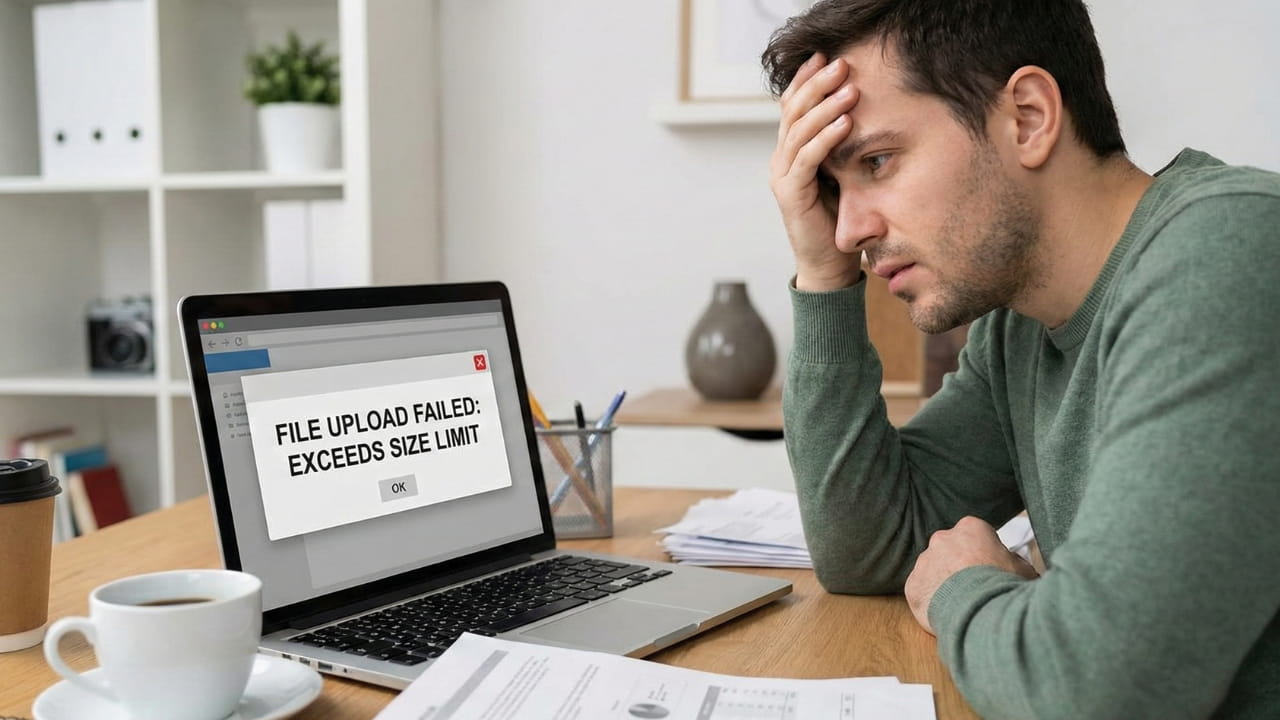
We’ve all been there. It’s 4:55 PM on a Friday. You’ve just finished a massive report, a stunning portfolio, or a critical legal contract. You attach the PDF to your email, hit send, and... boom. The dreaded error message pops up: "Attachment size exceeds the 25MB limit."
Panic sets in. You try zipping it. It’s still 24.9MB. You try deleting a page. Now it ruins the flow. You consider uploading it to Google Drive or WeTransfer, but your client’s firewall blocks external file-sharing links. You are stuck.
In 2026, dealing with file size limits feels like a relic of the dial-up era, yet Gmail, Outlook, and corporate servers still stubbornly enforce them. The solution isn't to delete your hard work; it's to understand the science of PDF Compression.
At NanoZipt, we specialize in solving this exact problem. But before you just click "compress" blindly, it’s crucial to understand how compression works so you don't end up with a blurry, unreadable mess. Let's dive deep into DPI, rasterization, and the art of shrinking files without losing quality.
Case Study: The Architect's Dilemma
Let's look at a real-world scenario. Sarah, a landscape architect, needed to send a final proposal to a city council. Her PDF was gorgeous—filled with high-resolution satellite imagery, complex vector CAD drawings, and embedded fonts for branding. The file size? A whopping 85MB.
The city council's submission portal had a strict 20MB limit. Her initial panic led her to a generic online tool that simply crushed the file down to 5MB. The result? Her beautiful satellite photos looked like pixelated Minecraft blocks, and the fine lines of her CAD drawings vanished. It looked unprofessional.
Using NanoZipt's intelligent "Recommended" compression, Sarah reduced the file to 18MB. The images were downsampled just enough to be sharp on a screen but light on disk, and the vector lines were preserved. She submitted on time, and the quality was indistinguishable to the naked eye. This is the power of smart compression.
The Anatomy of a Bloated PDF
Why is your PDF so huge in the first place? It’s usually not the text. Text takes up kilobytes. The culprits are almost always invisible or misunderstood data structures.
- High-Resolution Images: Photos straight from a phone or DSLR are often 4000x3000 pixels. A standard A4 page displayed on a screen only needs about 800-1000 pixels of width. The rest is wasted data.
- Embedded Fonts: Some PDF creators embed entire font families (Bold, Italic, Thin, Black) even if you only use the "Regular" style. This can add megabytes of unnecessary data.
- Hidden Metadata: PDFs often carry "baggage"—version history, thumbnails, XML data, and object streams that the viewer doesn't see but the hard drive feels.
- Unoptimized Vector Graphics: Complex charts or logos exported from Illustrator can contain thousands of "nodes" or anchor points. Simplifying these paths reduces size without losing crispness.
The Secret Sauce: Understanding DPI (Dots Per Inch)
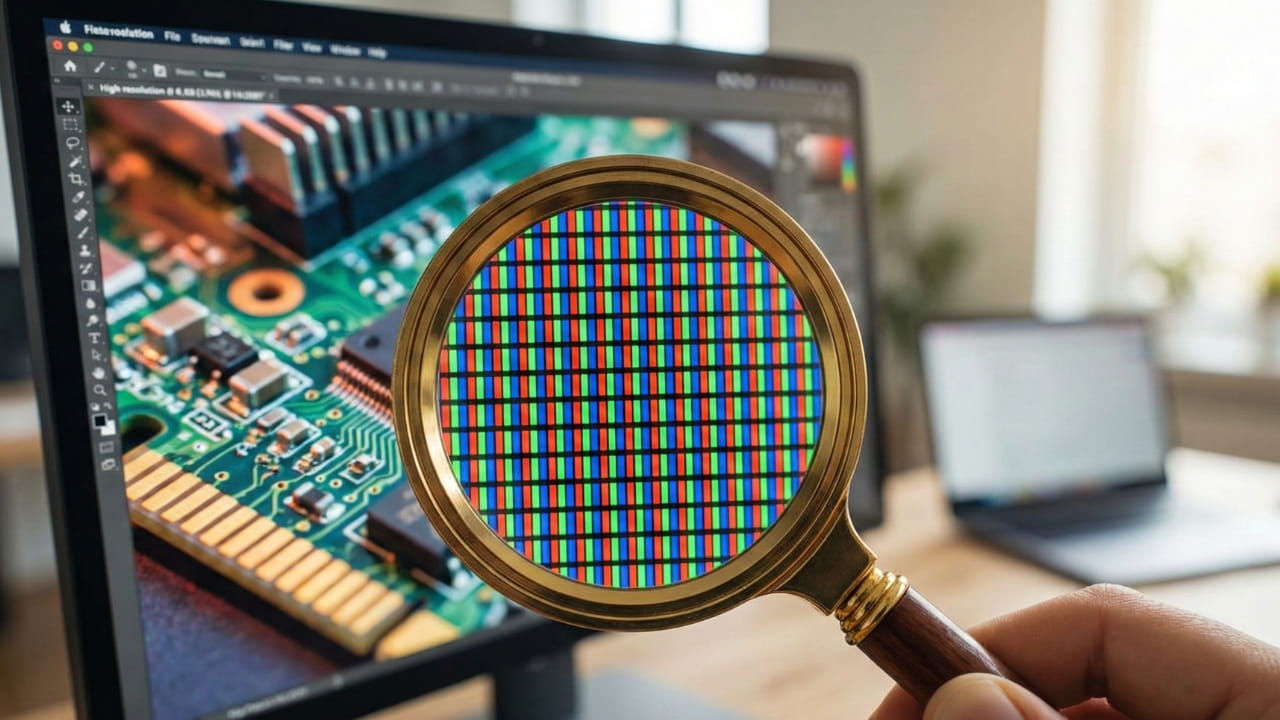
The most effective knob to turn when reducing file size is the DPI of the raster images inside the document. DPI stands for "Dots Per Inch," but in the digital world, it effectively means "Pixels Per Inch" (PPI).
Print vs. Screen:
Printers need high detail—usually 300 DPI or higher—to look crisp on paper because
ink bleeds and spreads. Computer screens, however, are forgiving. Standard monitors display around
72 to 96 DPI, while high-density Retina displays essentially double that.
If your PDF contains 300 DPI images but will primarily be viewed on a laptop screen or tablet, you are wasting millions of bytes of data on detail the human eye literally cannot perceive in that medium. It's like storing a 4K movie on a DVD—it fits, but you can't see the extra quality.
Our Free PDF Compressor intelligently analyzes your document and downsamples images to a target DPI based on your specific needs, stripping away the invisible excess while keeping the visible essence.
Compression Modes Explained: "Extreme" vs. "Recommended"
Not all compression is created equal. Choosing the wrong mode can ruin your document, while being too conservative won't solve your email problem. Here is a technical breakdown of the options available in NanoZipt:
1. Recommended Compression (The Sweet Spot)
Target DPI: ~150 DPI
JPEG Quality: 70-80%
Best For: Documents that will be viewed on screens but might occasionally be
printed on a home office printer.
This mode uses "visually lossless" compression. It removes metadata and downsamples huge images, but keeps the pixel density high enough that text remains sharp and photos look clear. You can typically expect a 40-70% reduction in file size. For a 30MB file, this brings you down to ~9-12MB—perfect for email.
2. Extreme Compression (Web Optimized)
Target DPI: ~72 DPI
JPEG Quality: 40-50%
Best For: Files meant strictly for web viewing, quick email previews, or archiving
old records where visual fidelity is secondary to storage space.
This mode is aggressive. It strips everything bare. Images might show slight "artifacting" (blocky noise) upon close zoom, but text usually remains legible because text is often kept as vector data. Use this when you have a monster 100MB scan that absolutely must get under 5MB. Reductions can reach 90-95%.
3. Less Compression (Print Ready)
Target DPI: ~200-300 DPI
JPEG Quality: 90-95%
Best For: Final drafts sent to a print shop or portfolio pieces where image quality
is paramount.
This mode mainly removes invisible metadata and optimizes font structures without touching the image resolution much. It’s for "tidying up" a file rather than shrinking it significantly. It ensures your printer won't choke on corrupt data streams while maintaining maximum fidelity.
Why "Client-Side" Compression is Better for Quality
You might think a massive server farm could compress files better than your laptop. Surprisingly, that's not always true.
Server-based tools are expensive to run. To save money on CPU cycles and electricity, many of them use "brute force" scripts (like Ghostscript with low settings) that apply a blanket reduction to every file to process it as fast as possible. They don't care if your graph becomes unreadable; they just want to get the file off their server.
NanoZipt uses WebAssembly to run the compression engine on your device. Because we aren't paying for server CPU time, we can afford to use more sophisticated, slower algorithms that analyze your file page-by-page. This results in a smarter compression that preserves edges and text clarity while aggressively shrinking flat colors. We optimize for your result, not our server bill.
The NanoZipt Advantage
Privacy: Your uncompressed file never leaves your computer. No risk of leaks during upload.
Speed: No upload time. The compression happens instantly in your browser memory.
Advanced Troubleshooting: When Compression Isn't Enough
Sometimes, a file is just stubborn. You run it through the compressor, and it only drops by 5%. Why?
- Already Compressed: The images inside might already be low-quality JPEGs. You can't compress what is already compressed without destroying it.
- Vector Complexity: If your PDF is a CAD drawing or a map with millions of vector lines, "image compression" won't help. You need a vector simplification tool or to "rasterize" (convert to image) the page.
- Corrupt Structure: Sometimes PDF internal tables are broken. Try using our PDF Organizer to save a "clean" version of the file first, then compress it.
Step-by-Step: How to Compress a PDF with NanoZipt
Ready to fix that email attachment error? Here is the workflow:
- Select Your File: Go to our PDF Compressor Tool. Drag and drop your file.
- Choose Your Mode:
- Start with Recommended. It works for 90% of cases.
- If the result is still >25MB, switch to Extreme.
- Wait for Processing: You will see a progress bar. This is your browser crunching the numbers.
- Download & Check: Always open the compressed file and scroll through it before sending. Check logos and small text to ensure they are still sharp.
Conclusion: Don't Compromise, Optimize
The 25MB email limit is an arbitrary hurdle, but it doesn't have to be a roadblock. By understanding the balance between DPI and file size, you can take control of your documents. You no longer have to choose between sending a professional-looking file and sending one that actually fits in the attachment box.
With client-side tools like NanoZipt, you get the best of both worlds: aggressive file size reduction and the peace of mind that comes with knowing your sensitive data never left your machine. So go ahead, hit send on that email. We've got your back.