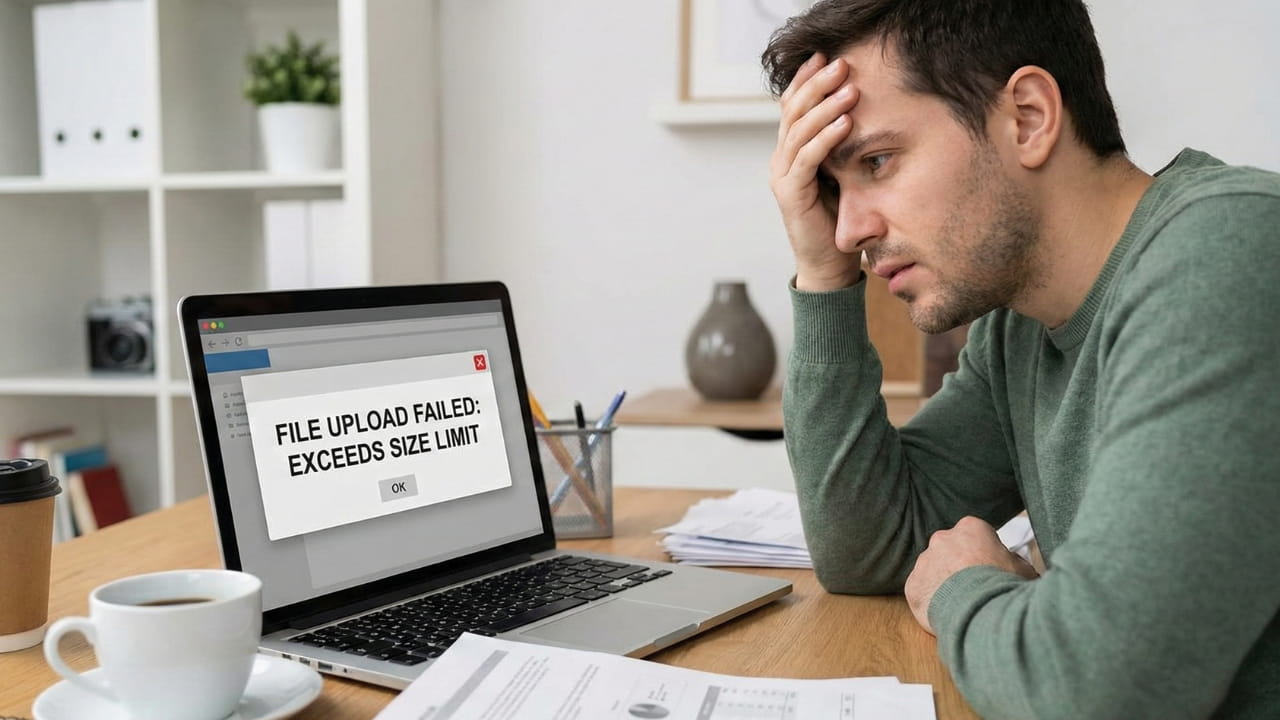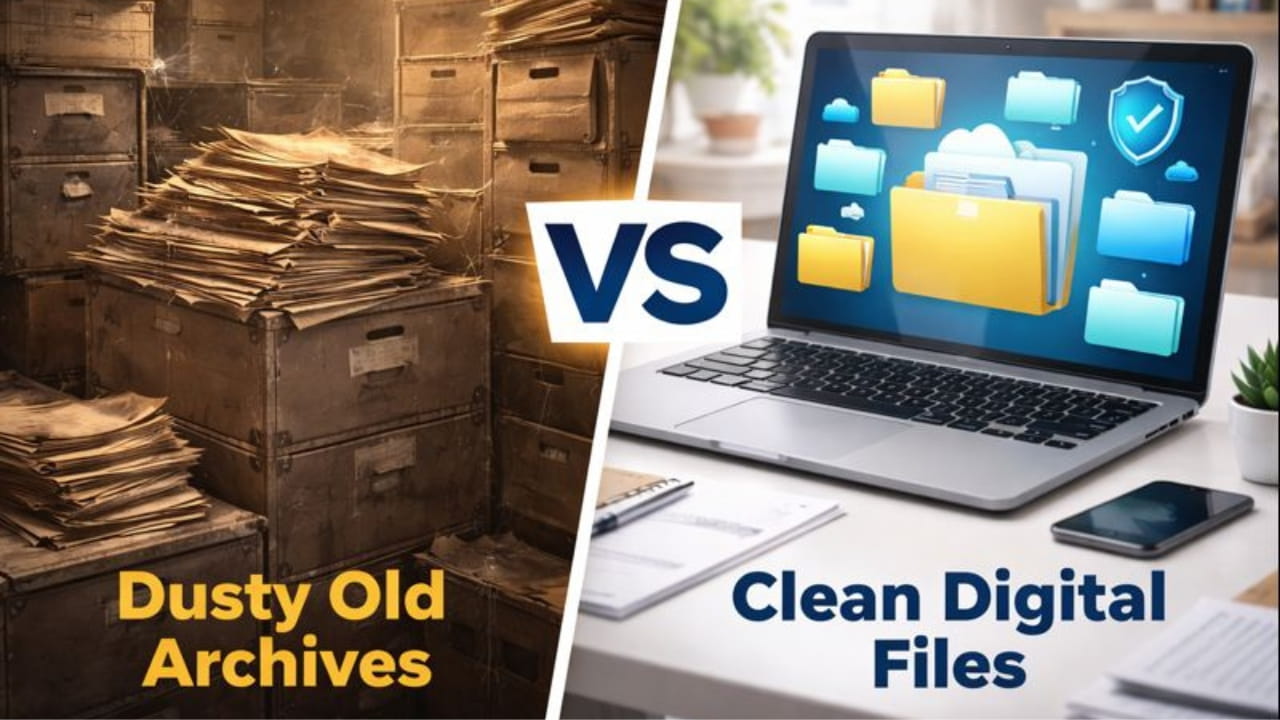
Imagine it's the year 2045. You're facing a routine government audit, or perhaps you're just trying to verify the purchase date of a vintage piece of equipment you bought back in 2024. You dig into your "Important Docs" folder on your cloud drive.
You find a folder named "Receipts_2024." Inside, it's a mess. IMG_4402.jpg,
Scan_001.png, Screenshot_2024-03-12.bmp. You try to open the JPEG. It's
corrupted—a grey box where the image used to be. The PNG opens, but the text is blurry because it
was compressed automatically by your email provider years ago. You can't search for "Laptop
Purchase" because images aren't searchable.
This is the reality of "Format Rot." We treat digital files as eternal, but they are fragile. Organizing your digital life isn't just about tidiness; it's about survival.
At NanoZipt, we build tools that help you convert chaos into order. Today, we're diving deep into why the PDF format—specifically PDF/A—is the only logical choice for anyone serious about creating a 100-year digital archive.
The Problem with "Just Taking a Picture"
It's tempting to just snap a photo of a receipt and forget about it. But JPEGs are terrible for archiving.
- Lack of Metadata: A JPEG doesn't inherently store multiple pages. A 10-page contract becomes 10 separate image files scattered in a folder. Good luck keeping those in order for a decade.
- Compression Artifacts: Every time you save or move a JPEG, it can suffer from "generation loss." Over 20 years of migrations between hard drives and cloud services, bits can rot, and compression can compound.
- Not Searchable: An image is just pixels. If you need to find a receipt from "Best Buy" in 2029, you can't search for the text "Best Buy" inside a JPEG. You have to open every single file visually.

Why PDF is the Gold Standard for Longevity
Portable Document Format (PDF) was invented by Adobe in the early 90s specifically to solve the problem of document portability. But for archivists, the real magic is a subset called PDF/A (Archive).
Even standard PDFs offer massive advantages over images:
- Containerization: A PDF is a container. It can hold text, vector graphics, raster images, and metadata all in one file. You can Merge 50 JPEGs into a single "January_Expenses.pdf" file.
- Self-Contained: A properly created PDF contains all the fonts and formatting information needed to display it. It doesn't rely on your computer having "Times New Roman" installed.
- Searchability (OCR): By using an OCR tool like Adobe's online scanner (external), an invisible text layer is added over the image. This means you can search your entire hard drive for "Warranty" and find the exact document instantly.
The Workflow: Building Your 100-Year Archive
So, how do you actually do this? You don't need expensive software. You just need a consistent workflow using free, secure tools like NanoZipt.
Step 1: Capture & Standardize
Take photos of your documents. Don't worry about cropping perfectly yet. Just ensure the text is legible.
Step 2: Convert to PDF immediately
Do not leave them as JPEGs. Use our Image to PDF tool (often called JPG to PDF) to convert each image into a PDF page. If you have a multi-page document, convert them all at once into a single file.
Step 3: Organize & Merge
This is the most critical step for sanity. Don't keep 30 small PDFs for one month of expenses. Use the PDF Merger to combine them into logical bundles: "2026-Q1-Expenses.pdf" or "Medical-Records-2026.pdf".
Tip: If you scanned pages out of order, use the PDF Organizer to drag-and-drop them into the correct sequence before merging.
Step 4: Protect Sensitive Archives
If you are archiving tax returns or ID documents, security is paramount. A physical file cabinet has a lock; your digital file needs one too. We recommend using a trusted tool like iLovePDF's Password Protector to encrypt the file with AES encryption for long-term safety.
Warning: For a 100-year archive, ensure you store the password in a secure password manager or write it down in a physical safe. If you lose the password, the encryption works too well—you will never get that data back.
The "3-2-1" Backup Rule
A digital archive isn't safe if it's in one place. Follow the 3-2-1 rule:
• 3 copies of your data.
• 2 different media types (e.g., your laptop SSD and an external USB
drive).
• 1 copy offsite (e.g., encrypted cloud storage).
Case Study: The Tax Audit Nightmare
We spoke to a freelance graphic designer, Mark, who was audited for expenses from 4 years ago. He had saved everything... as photos in his iPhone Camera Roll.
When the audit came, he had to scroll through 15,000 photos of his cat, his lunch, and his vacations to find 40 specific receipts. It took him three days of panic. Many receipts had faded and were unreadable in the photos.
Contrast this with his post-audit workflow. Now, every Friday, he spends 5 minutes converting his week's photos to PDF using NanoZipt. He merges them into "Week_24_Receipts.pdf". If he gets audited again, he just hands over 52 files. Zero stress.
Sustainability Check: WebAssembly vs. Cloud
While we are talking about long-term preservation, let's talk about the planet. Archiving Terabytes of uncompressed data on cloud servers consumes massive amounts of electricity for cooling and storage.
By using NanoZipt's Client-Side Processing (WebAssembly), you reduce your carbon footprint. You aren't uploading huge raw files to a server farm to be processed and downloaded again. You are using the electricity you've already paid for to power your own CPU. Plus, by compressing your archives, you reduce the long-term energy cost of storing that data in the cloud.
Conclusion: Start Today
Digital preservation sounds like something only libraries do, but in the digital age, we are all librarians of our own lives. The photos of your children, the deed to your house, the proof of your business expenses—these are your artifacts.
Don't let them rot in a "Downloads" folder. Take control. Standardize on PDF. Organize with intention. Secure with encryption. Your future self (and your accountant) will thank you.